Secure device usage: a practical guide for Australian families
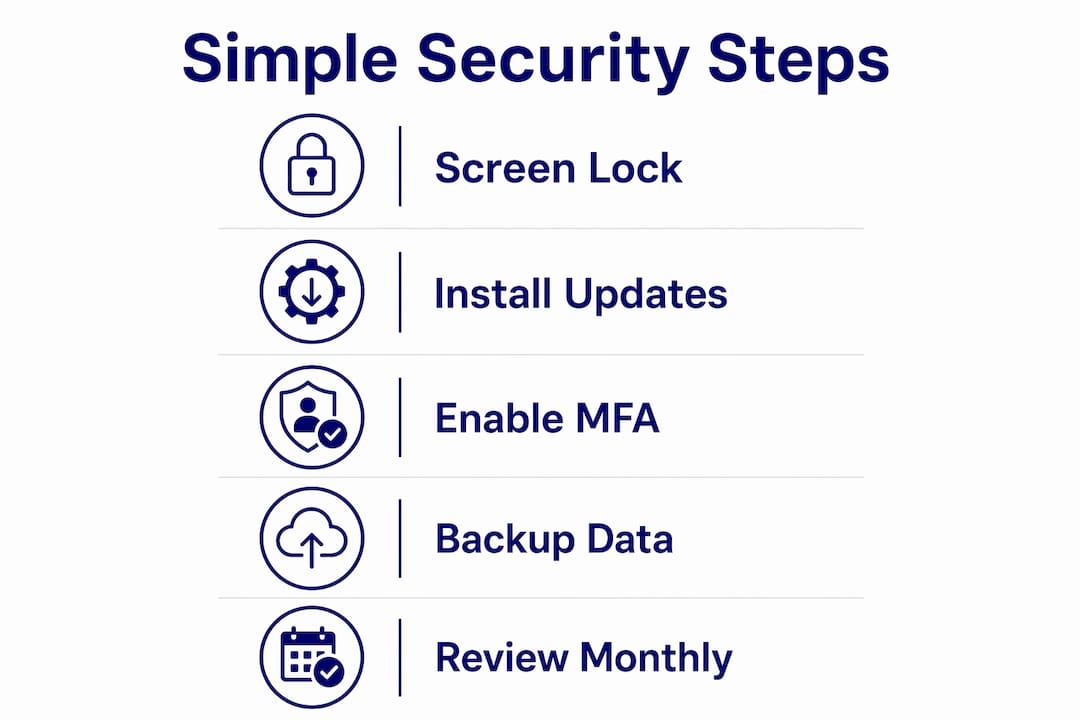
The single most important thing you can do right now is turn on your screen lock, install pending updates, enable multi-factor authentication, and activate Find My or its equivalent. These four steps, backed by the Australian Cyber Security Centre and recommended by Cybercompassconsulting, form the foundation of explaining secure device usage for every household.
“Secure device usage is not a one-time setup. It is an ongoing habit that should be reviewed every time you get a new device or install a major update.” — ACSC guidance
Enable a screen lock (PIN, password, Face ID, or fingerprint)
Install all pending operating system and app updates
Turn on automatic cloud backup
Enable multi-factor authentication (MFA) on email, banking, and social accounts
Activate Find My (Apple) or Find My Device (Android/Windows)
Table of Contents
Your 10-minute checklist to secure a device right now
Work through these steps in one sitting. Tick each off and note today’s date somewhere handy.
Minutes 1–2: Go to Settings and install any pending OS or app updates. Software updates patch known security vulnerabilities that attackers actively exploit.
Minutes 3–4: Set a strong passcode or passphrase. Enable Face ID or fingerprint as a convenience layer on top.
Minutes 5–6: Open your email, banking, and social media accounts and switch on two-step verification. Use an authenticator app (Google Authenticator, Microsoft Authenticator) rather than SMS where the option exists.
Minutes 7–8: Confirm that automatic backup is active. iCloud, Google One, and OneDrive all offer this. Note where your backup is stored.
Minutes 9–10: Enable Find My (iPhone/Mac) or Find My Device (Android/Windows). This lets you remotely locate, lock, or erase the device if it goes missing.
Pro Tip: Avoid ticking “remember me” on shared or public devices, and limit saved credentials on your personal devices too. An authenticator app is significantly more phishing-resistant than an SMS code.
How to set up essential protections on every major platform
Every device in your home needs a minimum set of protections. Here is how to apply them, platform by platform.
iPhone and iPad
Go to Settings > Face ID & Passcode (or Touch ID & Passcode) and set a strong passcode or password.
Go to Settings > General > Software Update and enable automatic updates.
Open the Find My app, tap your device, and confirm location sharing is on.
Go to Settings > [Your Name] > iCloud > Backup and turn it on.
Where available, use passkeys instead of passwords for app and website logins.
Android
Go to Settings > Security and set a strong PIN or enable fingerprint/face unlock.
Open the Play Store, tap your profile, and enable Play Protect and automatic app updates.
Enable Find My Device under Settings > Security > Find My Device.
Back up to Google One under Settings > System > Backup.
Windows
Use Windows Hello (PIN, fingerprint, or face) rather than a plain password.
Check Settings > Windows Update and enable automatic updates.
Enable BitLocker or device encryption under Settings > Privacy & Security > Device Encryption. Device encryption protects your data if the machine is stolen.
Turn on Find My Device under Settings > Privacy & Security > Find My Device.
macOS
Enable FileVault under System Settings > Privacy & Security > FileVault.
Set Automatic Updates under System Settings > General > Software Update.
Enable Find My under System Settings > [Your Name] > Find My.
Keep Gatekeeper active so only verified apps can install.
Pro Tip: On every platform, prefer an authenticator app or passkey over SMS for MFA. SMS codes can be intercepted; authenticator apps and passkeys are not vulnerable to that attack.
Safe browsing, apps, and removable media habits that reduce your risk
Safe browsing and cautious app habits stop the majority of common attacks before they reach your device.
“Avoid websites that do not use ‘https’ — they lack encrypted connections and may expose your data in transit.” — ACSC
Check for https: The padlock icon in your browser’s address bar confirms an encrypted connection. Avoid sites without it, particularly when entering passwords or payment details.
Apps from official stores only: Download from the Apple App Store or Google Play. Review the permissions an app requests before accepting them. An alarm clock asking for access to your contacts is a red flag.
Unknown USB drives: Never plug in a USB drive you found or received unexpectedly. Unknown external devices are a common malware delivery method. If you must check the contents, use an isolated machine with up-to-date antivirus software.
Public Wi-Fi: Avoid banking, shopping, or accessing work accounts on public networks. Use your phone’s 4G/5G hotspot instead, or a reputable VPN if a hotspot is not available. Mobile VPNs add a layer of encryption on untrusted networks.
Suspicious links: If a message urges you to click urgently, pause. Social engineering relies on that pressure. Verify through a separate channel before clicking anything.
Pro Tip: Your home router is often the weakest link. Keep its firmware updated and use WPA3 or WPA2 encryption with a passphrase of at least 20 characters.
What to do if your device is lost or stolen
Enable device location, remote lock, and encryption before a device goes missing. Those three features protect your data even when the hardware is gone.
Prevention first
Keep devices with you or locked away in public spaces.
Disable auto-connect to open Wi-Fi networks in your device settings.
Confirm Find My or Find My Device is active on every device you own.
Back up your data regularly so a lost device does not mean lost memories or documents.
If a device goes missing, act in this order:
Use Find My or Find My Device to locate the device. If recovery looks unlikely, trigger a remote lock or remote erase immediately.
From a clean device, change passwords for your email, banking, and any accounts stored on the missing device.
Enable MFA on those accounts if it was not already active.
Contact your bank and any financial institutions to flag potential unauthorised access.
Report the theft to police and, if personal data may have been exposed, lodge a report with ReportCyber (ACSC’s national reporting portal) and Scamwatch if a scam is involved.
How to build secure device habits as a family
Device security works best as a family habit rather than a one-off configuration. Behaviour change, not just settings, is what keeps households safe over time.
A simple family policy covers five areas: screen lock rules, an update schedule, app approval for younger children, a plan for lost devices, and agreed privacy settings. Revisit it together every few months.
Young children (under 10): Use parental controls built into iOS Screen Time or Google Family Link. Supervised use and approved apps only.
Teens: Set shared expectations rather than silent monitoring. A weekly check-in conversation about what they have downloaded or who they have spoken to online builds trust and awareness. Cybercompassconsulting’s cyberbullying prevention guide for parents covers the social risks that sit alongside device security.
Whole-family routine: Pick one evening a month for a “security check-in.” Update devices, review app permissions, and confirm backups are running.
Pro Tip: Frame security conversations around care, not control. “I want to make sure your photos and messages stay private” lands better with teenagers than “I’m checking your phone.”
Rapid steps when a device or account is compromised
Act immediately. Every minute of delay gives an attacker more time to change passwords, exfiltrate data, or lock you out.
Disconnect the affected device from Wi-Fi and mobile data.
From a clean device, change passwords for email first (it is the master key to most other accounts), then banking and social media.
Enable MFA on every account you just changed, if not already active.
Run a full antivirus scan on the affected device before reconnecting it.
If you have a recent backup, restore from it rather than trusting the potentially compromised state.
Preserve evidence: take screenshots of suspicious messages, note dates and times, and record any unusual account activity.
When to report
Unauthorised financial transactions: contact your bank immediately, then ReportCyber.
Identity theft or scam: report to Scamwatch.
Online abuse, image-based harm, or cyberbullying: contact the eSafety Commissioner.
A simple schedule for maintaining device security
Short, repeatable checks build long-term security without overload. The table below shows a realistic cadence.
Frequency | Action |
Daily | Confirm screen lock is active; check backup status |
Weekly | Install available updates; review recent account logins |
Monthly | Audit app permissions; review family device policy |
Annually | Factory reset devices before disposal; update family rules |
Trigger reviews: run an immediate check after buying a new device, installing a major OS update, or suspecting any compromise.
Factory reset before disposal — simply deleting files leaves data recoverable. For drives holding sensitive information, physical destruction is the safest option.
Treat your router like any other device: update its firmware on the same monthly schedule.
Trusted Australian resources for device security
ACSC / cyber.gov.au: The primary Australian government source for device security guidance. Use it to check current threats and read step-by-step setup guides.
ReportCyber: The ACSC’s national portal for reporting cybercrime. Bookmark it before you need it.
Scamwatch (ACCC): Reports scams and provides alerts about current fraud campaigns targeting Australians.
eSafety Commissioner: Australia’s independent regulator for online safety, with resources for families and a complaints process for online abuse.
Cybercompassconsulting: Practical family cyber-wellness programmes and one-on-one coaching grounded in behavioural science. Particularly useful for families who want guided support rather than self-directed reading.
NCSC (UK) top tips: Internationally recognised guidance on passwords, updates, and two-step verification that aligns closely with ACSC advice.
Key takeaways
Secure device usage is a layered, ongoing habit: screen lock, updates, MFA, backups, and a monthly family review form the core of a resilient household security posture.
Point | Details |
Act in the first five minutes | Enable screen lock, install updates, turn on MFA, and activate Find My before anything else. |
Prefer authenticator apps over SMS | Authenticator apps and passkeys resist phishing in ways that SMS codes do not. |
Back up regularly | Cloud backups mean a lost or compromised device does not mean lost data. |
Build a family routine | A monthly security check-in sustains good habits better than a one-off setup. |
Cybercompassconsulting | Offers family cyber-wellness programmes and coaching to help households build lasting, behaviour-first security habits. |
Why behaviour matters more than settings alone
There is a tendency to treat device security as a technical problem with a technical solution: install the right app, tick the right boxes, and you are done. After working in this field for over 35 years, I have seen that framing fail families repeatedly. The settings matter, but they are only as strong as the habits surrounding them.
A teenager who knows their phone is encrypted but still clicks every link in a group chat is not secure. A parent who set up parental controls two years ago and has not revisited them since the kids got older is not secure either. What actually reduces risk, over time, is the small repeatable behaviour: the weekly update, the monthly conversation, the instinct to pause before clicking something urgent.
Cybercompassconsulting’s family and school programmes are built on exactly this principle. Reduced technostress, better resilience, and genuine confidence with digital tools come from changing behaviour, not just changing settings.
Cybercompassconsulting’s family cyber-wellness support
Families who want more than a checklist can work directly with Cybercompassconsulting. The family cyber-wellness programme covers everything in this guide and goes further: personalised coaching, age-appropriate conversations with children, and a structured plan that fits your household’s real routines. For families connected to a school community, the virtual consultation programme brings the same evidence-based approach into the school context. Both options are grounded in over 35 years of experience bridging behavioural psychology and practical cybersecurity. To get started, book a consultation and receive a tailored plan within days.
Recommended
Comments