Two-factor authentication: a family guide for 2026
Enable two-factor authentication (2FA) on your household’s crown-jewel accounts today, and secure your recovery methods before you do anything else. That single action, done properly, blocks the vast majority of automated account takeovers that target families every day. This guide to two-factor authentication for families pairs NIST and FTC technical definitions with Cybercompassconsulting’s behavioural-first rollout approach, written specifically for Australian households, schools and small businesses.
Your immediate TL;DR:
Protect your recovery email first, with a unique password and the strongest 2FA you can use.
Enable an authenticator app or hardware security key on every crown-jewel account.
Save your recovery codes somewhere physically secure, not in a plain-text email.
Table of Contents
What does two-factor authentication actually mean?
Two-factor authentication requires you to verify your identity using two distinct factor categories before gaining access to an account. The NIST and FTC define three categories:
Knowledge: something you know, such as a password or PIN.
Possession: something you have, such as an authenticator app, SMS code, or hardware security key.
Inherence: something you are, such as a fingerprint or face scan.
The critical point most guides miss: two items from the same category do not qualify as 2FA. A password plus a security question is still single-factor authentication because both are knowledge factors. You need one factor from two different categories for genuine 2FA.
Stat worth knowing: Studies cited in practitioner summaries indicate 2FA blocks about 99.9% of automated account takeover attacks.
Why families and schools should make 2FA a priority
Passwords alone are no longer enough. Phishing, credential stuffing and brute-force attacks can compromise a single-factor login in minutes. For families, the stakes are personal: irreplaceable photos, banking access, school logins, and years of digital life sit behind accounts that most people protect with nothing more than a reused password.
The “master key” problem makes this worse. Your recovery email can reset almost every other account you own. If an attacker controls that one address, they can cascade through your entire digital life. Protecting that account with robust 2FA is the single highest-leverage action any household can take.
There is also a cultural dimension here. Research consistently shows that when adults model secure behaviour at home, children adopt it as normal rather than as an imposition. Schools that build 2FA into their acceptable-use policies see fewer workarounds and less risky sharing. Security culture, like most culture, flows downward.
Which 2FA method should your family actually use?
Authenticator apps and hardware security keys are the preferred choices. SMS is better than nothing, but it is vulnerable to SIM-swap attacks and should only be used when no better option exists.

Method | Security | Ease for children | Recovery risk | Cost in Australia | Device dependency |
Authenticator app | High | Moderate | Medium (device loss) | Free | Single device unless multi-enrolled |
Hardware key (YubiKey) | Very high | Low–moderate | Low (if backup key held) | — | Physical key required |
SMS code | Low–moderate | High | Low | Free | Phone number |
Push notification | High | High | Medium | Free (app required) | Smartphone |
Biometrics | High | High | Low | Free (built-in) | Device-specific |
Passkeys | Very high | High | Low–medium | Free | Platform-dependent |
By family segment:
Young children: parent-managed accounts with biometric unlock on a supervised device.
Older children and teens: authenticator apps or passkeys, which increasingly replace passwords entirely on major platforms.
Parents: authenticator app plus a hardware key for crown-jewel accounts.
School administrators: hardware keys and multi-device authenticator enrolment for shared admin accounts.
Pro Tip: For a shared family account that requires 2FA, scan the same QR code into multiple authenticator apps during setup. Each enrolled device then generates identical time-based codes independently, so no single person becomes the bottleneck.
Which accounts should you protect first?
Start with the accounts that can unlock everything else. Here is a practical staged rollout:
Day 1 — Crown jewels:
Recovery email account (Gmail, Outlook, Apple ID)
Password manager master account
Week 1 — Financial and government: 3. Online banking and superannuation portals 4. myGov and ATO online services 5. Major cloud storage (Google Drive, iCloud, OneDrive)
Month 1 — Everything else: 6. School and work logins 7. Social media accounts 8. Streaming and gaming platforms
For schools, coordinate 2FA rollout through your IT administrator or learning management system (LMS) settings. Assign delegated admin roles so that no single staff member holds sole recovery access to critical school accounts. Small businesses should apply the same logic: the recovery email is a single point of failure and must have the strongest protection available.
How do you avoid getting locked out?
The most common 2FA failure is not a breach. It is a family locked out of their own account because they lost their only authenticator device and never saved recovery codes. Fix this before it happens.
Step-by-step recovery plan:
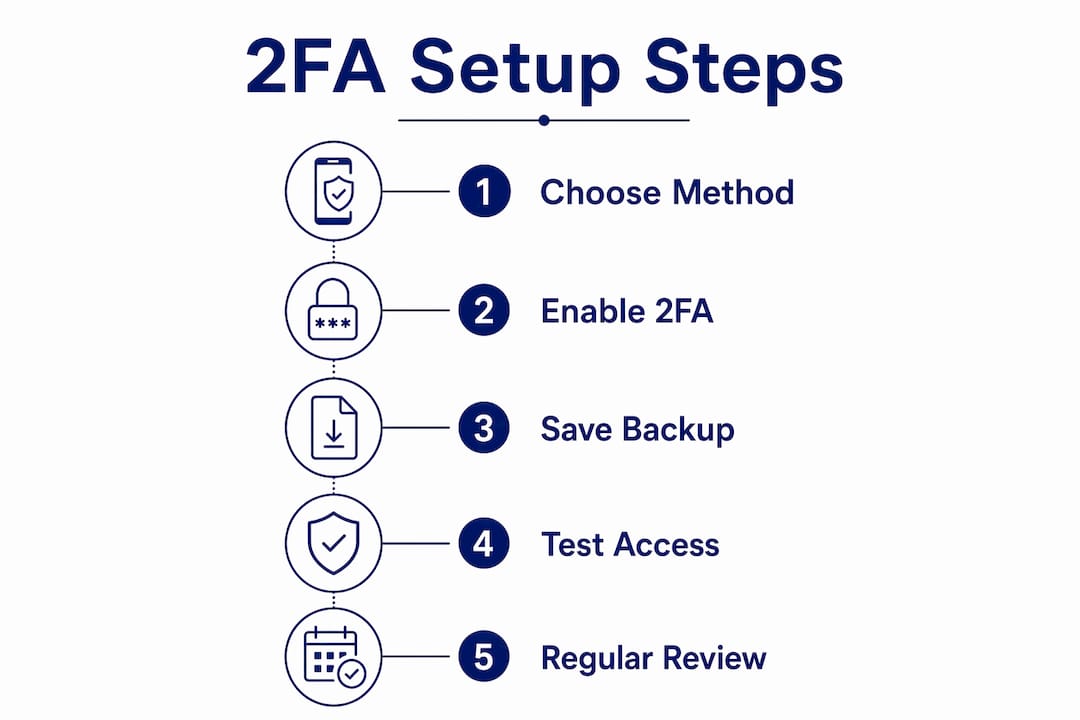
During 2FA setup, generate and download your backup/recovery codes immediately.
Store those codes in a locked home safe or an encrypted shared vault in your password manager.
Enrol a second authenticator device where the platform allows it.
Add a trusted contact or secondary recovery phone number in account settings.
Review recovery settings annually or whenever a family member gets a new device.
What not to do:
Never store recovery codes in a plain-text email or an unencrypted cloud document.
Never rely solely on SMS for accounts that hold financial or identity data.
Never set up 2FA on only one device without a documented backup plan.
Pro Tip: Print your single-use backup codes and store them in a sealed envelope inside a locked home safe. A documented recovery plan paired with physical storage is the most reliable safeguard against lockout.
How do you share access without sharing passwords?
The answer is a reputable, end-to-end encrypted password manager with a shared vault, and 2FA enabled on the manager itself. Texting passwords around the family group chat is the digital equivalent of leaving your house key under the mat.
Practical setup:
Create individual vaults for each family member.
Create a shared vault for household accounts (utilities, streaming, school portals).
Add crown-jewel credentials to the shared vault only when multiple people genuinely need access.
Enable authenticator-app 2FA on the password manager’s master account.
Use the manager’s emergency access feature so a trusted adult can recover access if needed.
Password managers with shared vault features let families revoke access cleanly when circumstances change, such as when a child moves out or a caregiver relationship ends. That auditability is something a group chat thread can never offer.
How do you teach children and set a household policy?
Make 2FA a household rule for crown-jewel accounts, and model it yourself first. Children who see adults treat security as routine are far less likely to resist it.
Age-appropriate guidance:
Under 10: parent-managed accounts; biometric unlock on supervised devices; no independent 2FA setup yet.
10–14: introduce authenticator apps with a parent walking through setup together; explain the double-lock analogy (your password is the front door key; 2FA is the deadbolt).
15 and over: full authenticator app or passkey use; teens manage their own recovery codes with a parent holding a backup copy.
Simple household policy template:
Which accounts require 2FA (at minimum: email, banking, school login, password manager).
Where backup codes are stored and who has access.
What to do when a new device is added to the household.
How caregivers or extended family members are granted temporary access.
Schedule a brief family check-in every six months to review which accounts have 2FA enabled and whether recovery details are still current. For safe internet guidance for parents, Cybercompassconsulting’s parent-focused resources offer practical next steps.
How do you enable 2FA on common Australian accounts?
Start with your recovery email and password manager, then work through each platform’s security settings page.
Platform | Where to find 2FA | Recommended method | Recovery notes |
Google Account | Security → 2-Step Verification | Authenticator app or passkey | Save backup codes; add recovery phone |
Apple ID | Settings → Sign-In & Security | Trusted device or security key | Recovery contact or recovery key |
Microsoft account | Security → Advanced security | Authenticator app | Recovery code or backup email |
myGov | Settings → Digital Identity | myGov code generator or app | Contact Services Australia for recovery |
Australian banks | Security or Profile settings | Bank app push notification | Institution-specific; call branch if locked out |
School LMS (Canvas, Moodle) | Profile → Security or MFA settings | Authenticator app | Contact school IT administrator |
For banking, prefer the bank’s own app push notification or an authenticator app where offered. Be prepared for institution-specific recovery procedures; most Australian banks require a branch visit or identity verification call to restore access.
Which tools and resources should Australian families use?
Enable 2FA on your password manager and recovery email first, then roll out across other accounts using one of the tools below.
Authenticator apps:
Google Authenticator — simple, free, widely compatible; now supports account backup via Google account.
Microsoft Authenticator — strong push-notification support; integrates well with Microsoft 365 school and work accounts.
Authy — supports multi-device sync and encrypted cloud backup, which reduces lockout risk for families.
Hardware security keys:
YubiKey (Yubico) — the most widely supported hardware key; available in Australia through major electronics retailers; recommended for crown-jewel accounts and school administrators.
Password managers:
1Password — family plan with shared vaults, travel mode, and strong 2FA support; popular with Australian households.
Bitwarden — open-source, free tier available, end-to-end encrypted; a solid choice for cost-conscious families and schools.
Australian guidance resources:
The Australian Cyber Security Centre (ACSC) publishes step-by-step setup guides and recovery walkthroughs tailored to Australian services, including myGov and banking.
The ACSC’s “Protect Yourself” series covers 2FA setup for individuals and small businesses in plain language.
For schools exploring cyber awareness workflows, Cybercompassconsulting’s school-focused resources complement these tools with structured, age-appropriate programmes.
Key takeaways
Protecting your recovery email with strong 2FA and securely storing backup codes is the single most effective step any Australian family, school, or small business can take to prevent account takeover.
Point | Details |
Crown-jewel accounts first | Protect recovery email and password manager before any other account. |
Authenticator apps beat SMS | Use Google Authenticator, Microsoft Authenticator, or Authy; avoid SMS for critical accounts. |
Recovery codes are non-negotiable | Generate, print, and store backup codes in a locked safe or encrypted vault during setup. |
Make it a household policy | Set a simple rule covering which accounts need 2FA, where codes live, and how new devices are added. |
Cybercompassconsulting’s approach | Cybercompassconsulting’s family and school programmes embed 2FA as part of a broader, evidence-based cyber-wellness plan. |
The part most guides leave out
Most 2FA guides treat this as a technical problem. Enable the feature, save the code, done. What they underestimate is how quickly a household’s security unravels the moment the setup feels inconvenient.
The real failure mode is not a sophisticated attack. It is a teenager who disables 2FA because it slows down their gaming login, or a parent who stores recovery codes in an email draft because printing felt like too much effort. Security theatre is worse than no security at all, because it creates false confidence.
What actually works, in my experience working with families and schools, is treating 2FA as a cultural practice rather than a technical checkbox. Adults who model it without complaint, who explain the double-lock analogy rather than issuing mandates, and who build recovery planning into a normal household routine see far higher and more durable adoption. The internet safety habits that stick are the ones that feel like care, not compliance.
Passkeys are worth watching closely. As major platforms extend support through 2026, they may become the most family-friendly option of all: no codes to lose, no SMS to intercept, and biometric confirmation that even young children can manage. The transition is not complete yet, but families who understand the underlying principles now will adapt to it without friction.
Cybercompassconsulting can help your family or school get this right
Knowing what to do and actually doing it across a household, a school, or a small business are two very different things. Cybercompassconsulting’s family cyber-wellness plans take the guesswork out of rollout by combining a personalised security audit with a step-by-step implementation plan your whole household can follow.
For schools, the cyber wellness school programme delivers age-appropriate workshops that embed 2FA and broader digital safety habits into school culture, backed by over 35 years of evidence-based practice. SME owners can access tailored audits and staff training through the SME business services page. To get started, book a consultation online and take the first concrete step toward a household or organisation that is genuinely protected.
This article provides general information about two-factor authentication practices. It is not professional security or legal advice. Confirm current platform-specific procedures with each provider’s official support pages or a qualified cybersecurity professional for your specific situation.
Useful sources and further reading
FTC: Use Two-Factor Authentication to Protect Your Accounts — Plain-language definitions of 2FA factor categories and a clear recommendation to prefer authenticator apps over SMS; a good starting point for any household.
NIST CSRC Glossary: 2FA — The authoritative technical definition of multifactor authentication, covering the three factor categories and what qualifies as valid 2FA.
Australian Cyber Security Centre (ACSC) — Step-by-step setup guides for Australian services including myGov, banking and small business accounts; the most relevant official resource for Australian readers.
Trustworthy: Setting Up MFA for Your Family — Practical walkthrough covering multi-device enrolment and recovery planning to reduce lockout risk in family settings.
Making Sense of Security: Family Passwords and Account Sharing — Covers the recovery email as a master key and how to structure shared access without compromising individual privacy.
BreachExpress: Share Passwords with Family Without Compromising Security — Explains shared vault setup and the multi-device QR-code technique for shared accounts requiring 2FA.
Recommended
Comments