What is safe internet browsing: a 2026 family guide
Safe internet browsing is the practice of actively protecting your personal data and privacy online by using secure tools, cautious habits, and proven security techniques. The industry term for this is “secure web browsing,” and it covers everything from the passwords you choose to the links you click. The National Cybersecurity Alliance’s ‘Core 4’ principles, the HTTPS standard, and multi-factor authentication (MFA) form the technical backbone of what most security professionals recommend. For families especially, understanding these practices is not optional. Phishing, malware, and data breaches are not abstract threats. They land in your inbox, your child’s school account, and your banking app every single day.
What are the core principles of safe internet browsing?
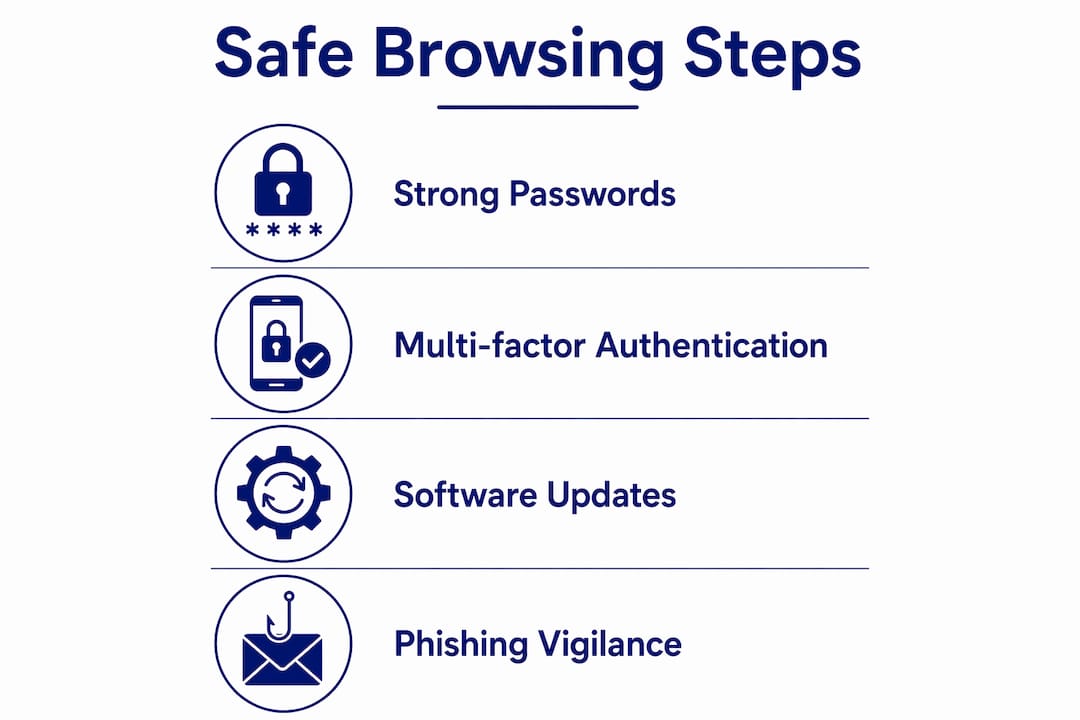
The ‘Core 4’ framework defines the minimum standard for safe browsing: strong unique passwords, MFA, regular software updates, and phishing vigilance. Each principle addresses a specific attack vector. Together, they close the most common doors attackers use to get in.
Strong, unique passwords
Reusing the same password across multiple sites is one of the most dangerous habits online. When one site suffers a breach, attackers test those credentials everywhere else. A password manager solves this problem directly. Password managers are essential because human memory cannot reliably handle dozens of complex, unique passwords. Tools like these generate and store long, random passwords so you never have to choose between convenience and security.
Multi-factor authentication
MFA adds a second verification step beyond your password, typically a code sent to your phone or generated by an app. Even if an attacker steals your password, MFA blocks access without that second factor. One critical rule: MFA codes must never be shared, because legitimate organisations never ask for them. Scammers impersonate banks and tech companies specifically to trick people into handing over these codes.
Software and browser updates
Outdated browsers and operating systems carry known security flaws that attackers exploit within hours of a vulnerability being published. Keeping software current closes those gaps before they become entry points. Set your browser and operating system to update automatically. This single habit removes a category of risk entirely.
Phishing vigilance
Phishing remains the most common online threat, exploiting urgency and emotion to make you click before you think. A message claiming your account will be suspended, or that you have won a prize, is designed to bypass your judgement. Slow down. Verify the sender. Never click a link in an unsolicited message without checking the actual URL first.
Pro Tip: Set up a free password manager like Bitwarden or use the one built into your browser. Generate a unique password for every account and never reuse credentials across sites.
How do secure connections and browser settings protect you?
Secure connections and browser configuration are the technical layer beneath your daily browsing habits. Getting these right reduces your exposure significantly, even when you make a mistake elsewhere.
HTTPS and the padlock icon
HTTPS confirms that data between your browser and a website is encrypted in transit. The padlock icon signals that encryption is active. However, the padlock does not mean the site itself is trustworthy. Phishing sites use legitimate SSL certificates to appear secure, which means a padlocked site can still steal your credentials. Always check the full domain name, not just the padlock.
VPNs on public Wi-Fi
Public Wi-Fi at cafes, airports, and hotels is a known attack surface. Anyone on the same network can potentially intercept unencrypted traffic. VPNs create encrypted tunnels that shield your browsing activity from local network monitoring. Using a reputable VPN service on any public network is one of the most practical steps you can take to protect your data while travelling.
Browser settings and notifications
Most browsers offer built-in security features that many people never configure. The table below outlines the most useful ones and what they actually do.
Browser feature | What it does | Effectiveness |
Private/incognito mode | Clears local history and cookies after session | Moderate (does not hide activity from ISP or employer) |
Cookie management | Blocks or limits third-party tracking cookies | High for privacy |
Push notifications control | Prevents sites from sending alerts to your desktop | High for scam prevention |
Safe browsing mode | Warns before visiting known malicious sites | High for threat detection |
Extension management | Controls which add-ons can access your data | Critical for security |
Disabling browser notifications is a step most people overlook. Scammers push fake virus alerts and fraudulent prize notifications through browser push channels, even when you are not actively visiting a malicious site. Turn off notifications for any site that does not genuinely need them.
Browser extensions deserve particular scrutiny. Extensions often bypass native browser security because they operate with wide permissions, including the ability to read and modify page content. Install only extensions from trusted sources, and remove any you no longer actively use.
Pro Tip: Go to your browser’s settings right now and review your installed extensions. Remove anything unfamiliar or unused. Then check your notification permissions and revoke access for any site you do not recognise.
What practical steps can families take to protect children online?
Families face a specific challenge: children are curious, trusting, and often more digitally active than their parents realise. The risks are real, and the protective measures need to be both technical and conversational.
Setting user profiles to private, limiting the sharing of personally identifiable information, and teaching children to treat online strangers with the same caution they would apply in the real world are the three most critical starting points. These are not one-off conversations. They need to become ongoing household norms.
Practical steps for families include:
Set all social media accounts to private. Review privacy settings on every platform your child uses, including gaming platforms and messaging apps.
Limit personal information online. Full names, school names, suburbs, and photos that reveal location should never be shared publicly. This connects directly to protecting online privacy as a family practice.
Teach the “stranger danger” principle for online contacts. A friendly username does not mean a safe person. Children need to understand this clearly and without ambiguity.
Use parental controls and monitoring tools. Most devices and routers offer built-in parental controls. Use them as a baseline, not a complete solution. Monitoring works best alongside open conversation.
Create a household reporting culture. Children who feel safe reporting something uncomfortable online are far less likely to hide a problem until it escalates. Make it normal to talk about what they see.
Review internet safety for families together. Sitting down with your children to read through safety guidelines reinforces that online safety is a shared responsibility, not a punishment.
The goal is not surveillance. It is building the kind of digital literacy that protects children even when you are not watching.
How do you identify and respond to common online threats?
Recognising a threat before you click is the most effective form of protection. Most attacks succeed because they create urgency that overrides careful thinking.
Phishing indicators to watch for:
Urgent or threatening language. “Your account will be closed in 24 hours” is a classic pressure tactic.
Poor grammar or unusual formatting. Legitimate organisations proofread their communications.
Mismatched or suspicious URLs. Hover over any link before clicking. The displayed text and the actual destination URL should match.
Requests for personal information via email or text. Banks and government agencies do not ask for passwords, MFA codes, or account numbers through unsolicited messages.
Spoofed sender addresses. An email may display a trusted name but use a completely different domain in the actual address.
If you suspect you have been compromised, act immediately. Change your passwords starting with your email account, which is the master key to everything else. Run a reputable antivirus scan. Contact your bank if financial information may have been exposed. Report the incident to the Australian Cyber Security Centre (ACSC) via ReportCyber.
Understanding why phishing works psychologically is as important as knowing the technical signs. Attackers exploit fear, excitement, and time pressure. Knowing this makes you harder to fool.
Do not click links in unsolicited messages, download attachments from unknown senders, or share MFA codes with anyone who contacts you unexpectedly. Do verify requests through official channels, use bookmarked URLs rather than clicking email links, and trust your instinct when something feels wrong.
Key takeaways
Safe internet browsing requires combining strong passwords, MFA, updated software, and phishing awareness with secure browser settings and open family conversations about online risks.
Point | Details |
Use the ‘Core 4’ framework | Strong passwords, MFA, software updates, and phishing vigilance form the minimum standard. |
Do not trust the padlock alone | HTTPS confirms encryption but not site trustworthiness; phishing sites use valid certificates. |
Manage browser extensions carefully | Extensions bypass built-in security, so install only trusted ones and remove unused add-ons. |
Protect children through conversation | Technical controls work best alongside regular, open discussions about online dangers. |
Act fast if compromised | Change passwords, run antivirus scans, and report to the ACSC via ReportCyber immediately. |
The habit that actually protects you
I have spent years working with families who believe that safe browsing means being perfectly cautious at all times. That standard is unrealistic, and it sets people up to feel like failures the moment they make a mistake.
The more useful frame is “consistent friction.” Slowing down at critical decision points, like before clicking a link or downloading a file, disrupts the speed-based tactics attackers rely on. You do not need to be perfect. You need to be slightly slower than the average target.
The padlock misconception is one I see constantly. People feel safe the moment they see that little icon, and attackers know it. Phishing sites routinely carry valid SSL certificates now. The padlock tells you the connection is encrypted. It says nothing about whether the site on the other end is legitimate.
What I have found actually works for families is building small, repeatable routines. A password manager installed on every device. MFA turned on for email and banking. A five-minute conversation at dinner about something odd the kids saw online. None of these feel like “cybersecurity.” They feel like normal household habits. That is exactly the point.
Legitimate organisations never request urgent actions like password resets via unsolicited pop-ups or texts. Teaching your family this one rule eliminates a huge proportion of social engineering attacks. Write it on a sticky note if you have to.
The families who build genuine digital resilience are not the ones with the most sophisticated tools. They are the ones who talk about it regularly, adjust when something new emerges, and treat online safety as a shared value rather than a technical problem for one person to solve alone.
— Jemma
How Cybercompassconsulting supports your family’s online safety
Knowing the principles is one thing. Putting them into practice across a household, with children of different ages and varying levels of digital awareness, is another challenge entirely.
Cybercompassconsulting works with families, schools, and organisations to build personalised cyber safety plans grounded in behavioural science and real-world experience. With over 35 years of expertise, the team goes beyond checklists to address the human habits and mindsets that determine whether security practices actually stick. Whether you want a virtual consultation for your family or a structured programme for your school community, Cybercompassconsulting offers tailored support that fits your situation. You can book a session online and start building a cyber wellness plan that works for your household.
FAQ
What is safe internet browsing in simple terms?
Safe internet browsing is the practice of using secure habits and tools to protect your personal data and privacy from online threats like phishing, malware, and data breaches.
Does the padlock icon mean a website is safe?
The padlock confirms the connection is encrypted but does not guarantee the site is trustworthy. Phishing sites use valid SSL certificates, so always verify the full domain name before entering personal information.
What is multi-factor authentication and why does it matter?
MFA adds a second verification step beyond your password, so attackers cannot access your account with a stolen password alone. Never share MFA codes with anyone, as legitimate organisations never request them.
How can parents protect children while browsing online?
Set all social media profiles to private, limit sharing of personal information, and have regular conversations about online strangers and reporting uncomfortable experiences. Technical controls work best when paired with open family dialogue.
What should I do if I think I have been phished?
Change your passwords immediately starting with your email account, run an antivirus scan, contact your bank if financial details were exposed, and report the incident to the Australian Cyber Security Centre via ReportCyber.
Recommended
Comments